How to Check Whether Your Phone Supports eSIM (iPhone and Android)
Travel eSIM basics · · Last reviewed · By SMSVault Team · 5 min read
Before you buy a travel eSIM, you need to know one thing: can your phone use it? Many recent phones support eSIM, but not all of them, and a phone that supports it can still be blocked by a carrier lock. Buying a plan first and discovering the problem at the airport is an easy mistake to avoid.
This guide shows you four quick ways to check whether your phone supports eSIM, how to confirm that it's unlocked, and what to do if the answer is no.
What an eSIM Needs From Your Phone
For an eSIM to work, three things need to be true:
- The hardware supports eSIM. The phone must have a built-in eSIM chip, which not every model has.
- The phone is network-unlocked. A phone locked to one carrier may refuse a plan from another provider.
- The software is up to date. Updates can add eSIM features and fix installation problems.
The checks below cover the first two. Keep your phone charged and connected to Wi-Fi while you do them.
4 Ways to Check If Your Phone Supports eSIM
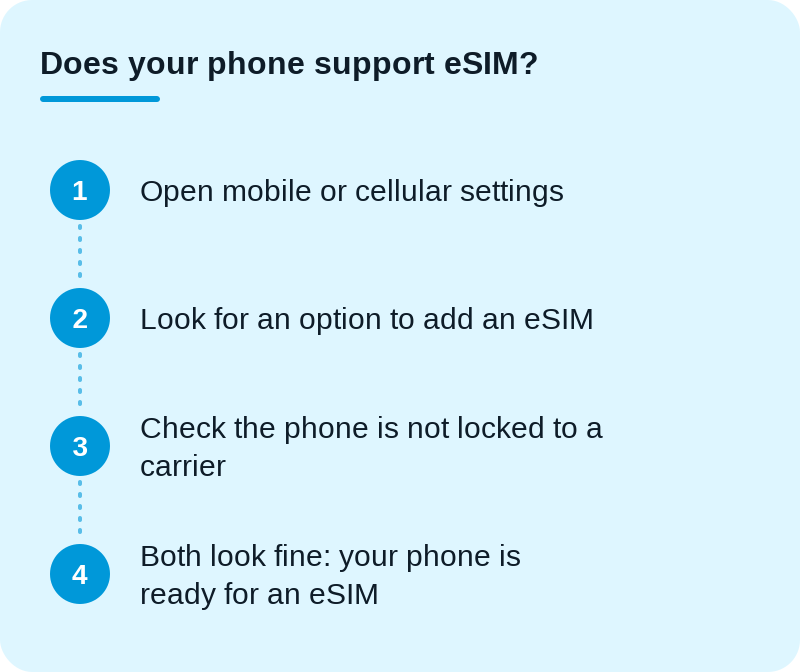
1. Look for the "Add eSIM" option in your settings
This is the quickest check. Menu names vary by brand and software version, but you are looking for an option to add a cellular plan or eSIM.
- iPhone: Open Settings, then Cellular (or Mobile Data), and look for "Add eSIM" or "Add Cellular Plan".
- Android: Open Settings, then Network & internet (or Connections), then SIMs, and look for "Add eSIM" or "Add SIM".
If you see the option, your phone very likely supports eSIM. If it doesn't appear, try methods 2 and 3 before you decide the answer is no, because some brands hide the menu in other places.
2. Dial *#06# and look for an EID number
Every eSIM-capable phone has a unique identifier called an EID.
- Open your phone app and dial `*#06#`.
- A screen appears showing your device information.
- Look for a line labeled EID with a long number.
If an EID is listed, your phone has an eSIM chip. If you only see IMEI numbers and no EID, your phone probably doesn't support eSIM, or this code doesn't show it on your model. On many phones you can also find the EID in the About section of your settings (on iPhone: Settings, General, About).
3. Check the official specifications
Search for your exact phone model on the manufacturer's website and look at the SIM section of its specifications. It will say whether the phone supports eSIM, a physical SIM, or both.
Be careful with the exact model and the region. Some regional versions of a phone differ in SIM support, and a model name alone isn't always enough. Your model number is in Settings, under About.
4. Ask your carrier or the phone's manufacturer
If you are still unsure, contact your carrier or the manufacturer's support, and give them your exact model. They can tell you whether your device supports eSIM and whether it's unlocked.
Tip: Do this check before you buy a plan. Checking takes two minutes, and a plan that doesn't work wastes money and time.
Quick Check by Phone Type
| Phone type | What to look for |
|---|---|
| Recent iPhone | "Add eSIM" under Cellular, or an EID in Settings, General, About |
| Recent Samsung Galaxy | "Add eSIM" under Connections, SIM manager |
| Recent Google Pixel | "Add SIM" or "Add eSIM" under Network & internet, SIMs |
| Older or budget Android | Check the specifications page and dial *#06# for an EID |
| Phone bought in a different region | Check the exact model number, since regional versions can differ |
Features change with new models and updates, so use this table as a starting point and confirm on your own phone.
How to Check If Your Phone Is Unlocked
An eSIM-compatible phone can still refuse a plan if it's locked to its original carrier. This is the most common reason an eSIM won't install.
- iPhone: Open Settings, then General, then About, and look for a line such as "Carrier Lock" or "SIM Lock". A message that says there are no SIM restrictions means the phone is unlocked.
- Android: Menus differ by brand. Look in your SIM or network settings for a lock status, or ask your carrier directly.
- Not sure? Contact your carrier and ask whether your phone is unlocked for use with other providers. Phones paid off in full are often eligible to be unlocked, but the rules depend on your carrier.
What to Do If Your Phone Doesn't Support eSIM
Don't give up on staying connected abroad. You still have options:
- Buy a local physical SIM at your destination, ideally from an official store.
- Rent a portable Wi-Fi hotspot for the length of your trip.
- Check your home carrier's roaming plans, but compare the daily cost, because roaming can be expensive.
- Upgrade later, if you travel often and your next phone supports eSIM.
You Are Ready: What Next?
Once you've confirmed that your phone supports eSIM and is unlocked, the next steps are choosing a plan for your destination and installing it. Install it over Wi-Fi before you travel, then switch your mobile data to the travel line when you land.
SMSVault offers prepaid travel eSIM plans delivered by QR code and paid from your account balance. You can browse the plans on the SMSVault eSIM page before you decide. For the setup steps, see our guide on how to install a travel eSIM, and for the basics, read what an eSIM is.
Frequently asked questions
Ready when you are
Browse travel eSIMsArticles are for general information and are reviewed by the SMSVault team.