Common eSIM Installation Problems and How to Fix Them
Travel eSIM basics · · Last reviewed · By SMSVault Team · 6 min read
Setting up a digital SIM card should be a seamless experience, but technical hiccups can occasionally get in the way. Whether it is a stubborn QR code or a profile that refuses to connect to the network, installation hurdles can be frustrating when you are ready to start your trip. Understanding why these issues happen is the first step toward a quick resolution.
Most connectivity problems stem from small setting oversights or timing issues rather than hardware failure. By following a systematic approach to troubleshooting, you can usually identify the culprit—whether it is an incompatible device or a simple toggle that was left turned off in your cellular settings menu.
If you find your esim not working after the initial scan, there is no need to panic. Most obstacles are easily cleared with a few adjustments to your phone's configuration. This guide covers the most frequent roadblocks and provides clear steps to get your mobile data flowing properly.
Checking Device Compatibility and Status
Before diving into complex settings, ensure your hardware is ready for a digital profile. Not all smartphones support this technology, and even those that do must be unlocked by the original service provider to accept a third-party data plan. If your device is restricted to a specific carrier, the installation will fail immediately.
You can usually verify your status in the 'About' section of your phone's settings. Look for a field that indicates whether there are any service restrictions. If the device is locked, you will need to contact your home carrier to request an unlock before you can proceed with a travel data plan.
Another common oversight is having an outdated operating system. Software updates often include essential patches for cellular connectivity and profile management. Ensure your phone is running the latest version available to avoid bugs that might interfere with the activation process.
Tip: Always check your device specifications or consult the manufacturer's documentation to confirm support for secondary digital SIMs before purchasing a plan.
Troubleshooting QR Code and Activation Errors
The most frequent issue during setup is a QR code that refuses to scan or returns an error message. This often happens if the phone's camera cannot get a clear focus or if the lighting is too dim. If you are trying to scan the code from a document on the same screen, you may need to use the manual entry method instead.
Manual activation involves entering a specific SM-DP+ Address and an Activation Code provided with your purchase. This bypasses the camera entirely and is often more reliable if you are in a crowded area or have a damaged lens. Copy and paste these strings carefully to avoid typos, as even one wrong character will prevent the profile from downloading.
If you receive a message stating the code is no longer valid, it may mean the profile was already successfully downloaded. Check your cellular settings to see if a new "Business" or "Travel" line has appeared. Avoid deleting the profile and trying again, as many codes are designed for a single use only.
- Open your cellular or mobile data settings.\n2. Select the option to add a data plan or eSIM.\n3. Choose "Enter Details Manually" if the QR scan fails.\n4. Input the provided address and activation string.\n5. Restart your device to finalize the installation.
Fixing Connectivity and Data Issues
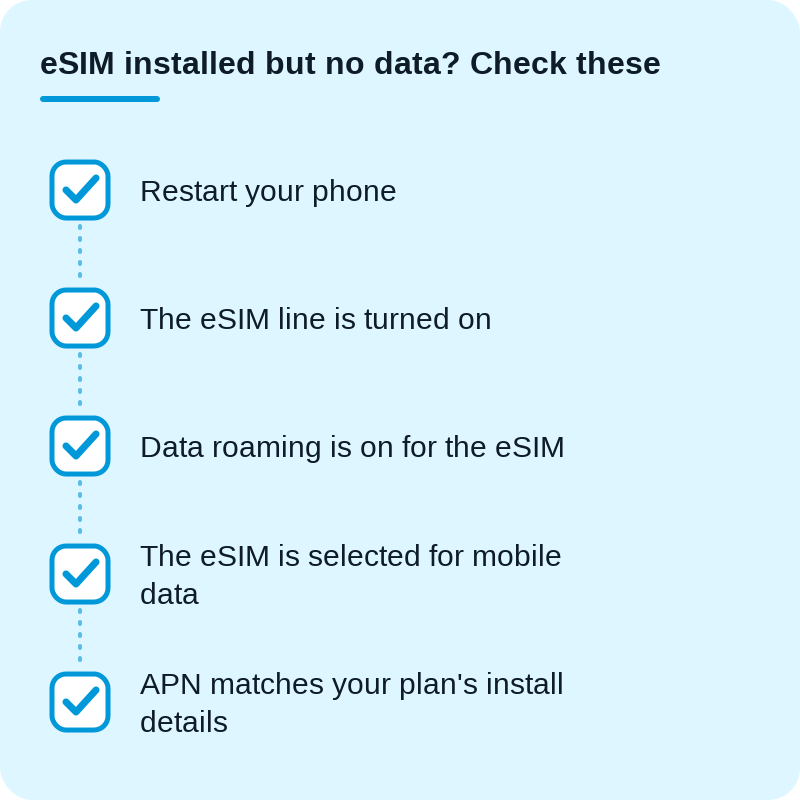
Once the profile is installed, you might still face a situation where you have signal bars but no internet access. This is a common sign that the Data Roaming toggle is turned off for that specific line. Unlike your home SIM, a travel data plan requires roaming to be enabled to function on foreign networks.
Navigate to the specific settings for your new travel line and ensure "Data Roaming" is switched to the "On" position. You should also verify that the new line is selected as the primary source for "Mobile Data." If your phone is still trying to use your home SIM for data, the travel plan will remain idle.
Sometimes, your phone might struggle to choose the best local network automatically. If your esim not working persists, try turning off "Automatic Network Selection" and manually picking a provider from the list that appears. This can force a connection if the device is stuck in a loop trying to reach a weak signal.
Essential Settings Checklist\n- Mobile Data is set to the new travel profile.\n- Data Roaming is enabled for the travel line.\n- Low Data Mode is turned off to ensure full speeds.\n- Airplane Mode has been toggled on and off to refresh the connection.
Addressing APN and Configuration Conflicts
In rare cases, the Access Point Name (APN) does not configure itself automatically upon installation. The APN acts as a gateway between your phone and the internet. If this field is blank or contains incorrect information, your apps will not be able to send or receive data despite having a strong signal.
You can find the APN settings within the cellular data network menu of the specific travel profile. If the provider requires a specific name, it will usually be listed in your installation instructions. Type the name exactly as shown, keeping an eye on capitalization and spacing, then save the settings and restart.
Conflicts can also arise if you have old management profiles or VPN configurations installed from previous trips or workplace requirements. These can sometimes override new network settings. If you encounter persistent issues, consider removing old, unused data profiles to clear the path for your current plan.
Tip: If you are unsure what the APN should be, check the support documentation provided with your activation code, as this varies depending on the region and plan type.
Maximizing Privacy and Security While Traveling
Using a digital data plan is a great way to stay secure, as it helps you avoid risky public Wi-Fi networks in airports and cafes. However, data is only part of the puzzle when managing your digital footprint abroad. Maintaining privacy often requires separating your physical location from your online identity.
For those who need to verify accounts or access services while traveling, using temporary phone numbers for SMS verification codes can be a lifesaver. This allows you to keep your personal number private and avoid high international texting fees. SMSVault offers temporary numbers in over 150 countries, providing a secure way to receive codes without revealing your permanent contact info.
Whether you are testing a new app or logging into a secure portal from a hotel room, having a reliable way to receive messages is essential. With the ability to top up your balance via card or crypto, you can maintain your privacy wherever you go. If an SMS fails to arrive, the automatic refund to your balance ensures you only pay for what works.
- Log in to your SMSVault account.\n2. Choose a country and service for your temporary number.\n3. Use the number to request your verification code.\n4. Receive the code instantly in your dashboard.\n5. Complete your sign-up or login securely.
Final Steps for a Smooth Experience
Most issues with a travel data plan are resolved within the first few minutes of landing. If you have followed all the troubleshooting steps and your esim not working remains an issue, a simple restart is often the most effective final step. This forces the device to re-authenticate with the local cell towers and apply any pending configuration changes.
Remember that travel plans are designed for data, not traditional voice calls or outgoing SMS. If you need to make a call, use data-based messaging apps. For incoming security codes and account verifications, turning to a dedicated service like SMSVault ensures you stay connected to your essential services without needing a local plastic SIM card.
By preparing your device ahead of time and knowing how to adjust your roaming and APN settings, you can enjoy a stress-free trip with constant connectivity. Ready to secure your digital life for your next journey? Explore the range of temporary numbers and travel data options available to keep your communication private and reliable.
Frequently asked questions
Ready when you are
Browse travel eSIMsArticles are for general information and are reviewed by the SMSVault team.